


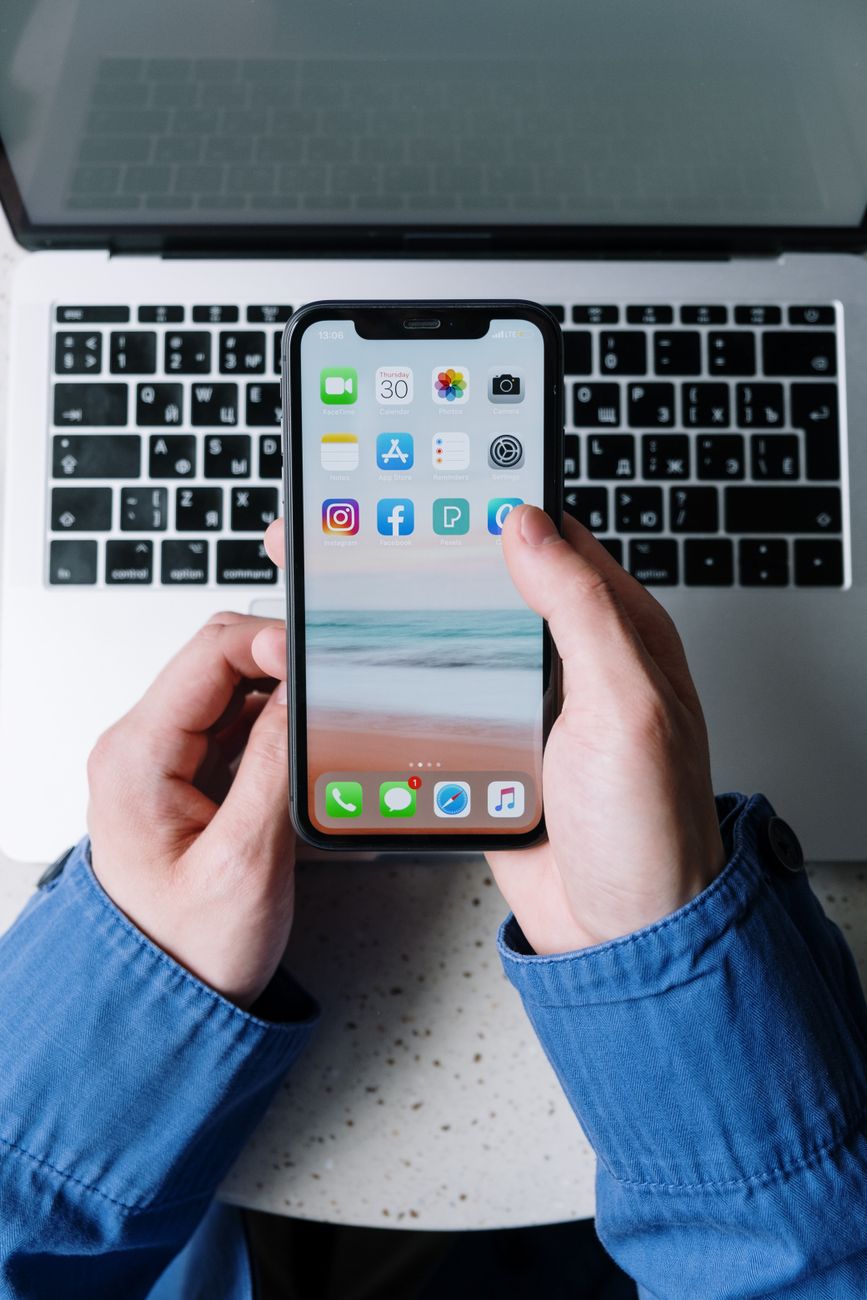
View your iPhone’s Wi-Fi password: Extremely easy iOS trick to recover your password.
View iPhone Wi-Fi password This has now become an extremely useful feature that Apple officially integrated for users since iOS 16. Previously, retrieving wireless network passwords on iOS devices was always a \”difficult task\” for many people, requiring jailbreaking or connecting to a computer. However, with recent updates, retrieving this information has become simpler than ever. If you are struggling because you forgot the password for your home or friend’s network, let’s explore the detailed steps below.
How to quickly view your iPhone’s Wi-Fi password on iOS 16 and above.
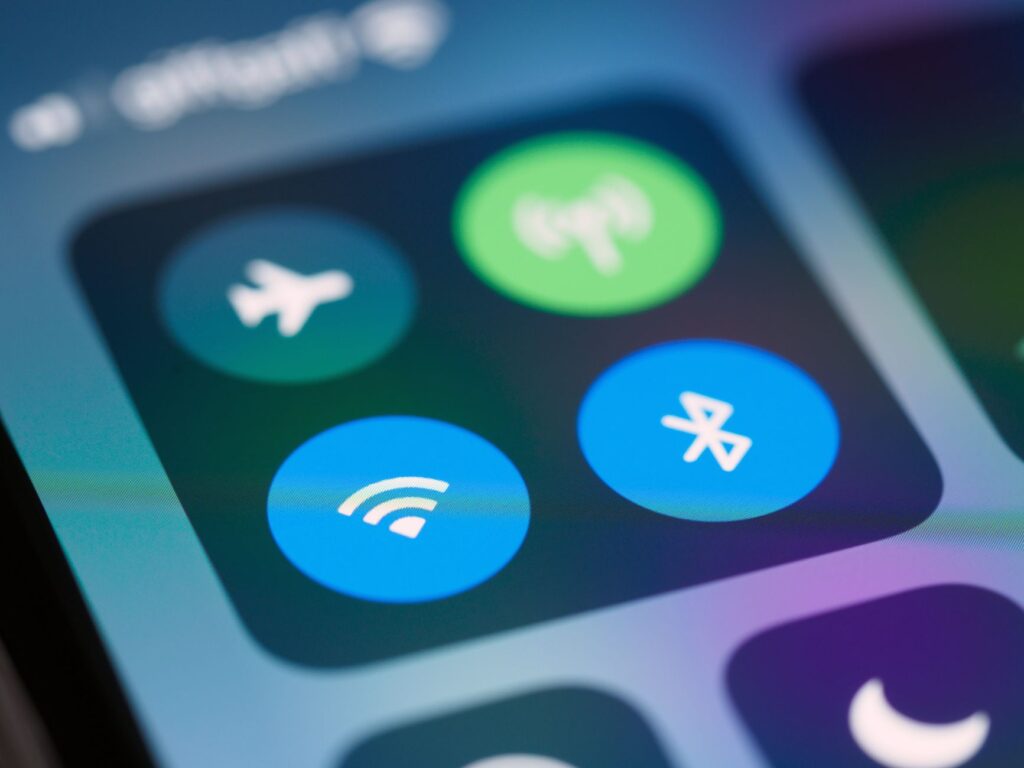
Job View iPhone Wi-Fi password Apple has optimized it right in the system settings. You don’t need to install any third-party apps, ensuring absolute security and privacy for your data.
To do this, simply follow these steps:
1. Access Settings: Open the Settings app from the home screen.
2. Select the Wi-Fi option: Here, you’ll see a list of the networks your iPhone has previously connected to.
3. Select the network you want to view: Tap the \”i\” (information) icon next to the name of the Wi-Fi network for which you want to recover the password.
4. Password verification: You will see the word \”Password\”. When you tap on it, the system will prompt you to authenticate using Face ID, Touch ID, or your lock screen password.
5. Show password: After successful verification, the password for that Wi-Fi network will be clearly displayed. You can press \”Copy\” to send it to a friend or save it as a note.
This is considered to be iOS tips This is the most practical thing every iPhone user should know to avoid having to \”reset\” their modem every time they forget their password.
Why do you need to know this phone trick?
Modern life is closely tied to the internet, and storing so many network passwords—from home and cafes to the office—makes it easy to forget them. Mastering them is essential. phone tricks This will help you:
Easy network sharing: Instead of having to hand your device to someone else to scan a QR code (sometimes the other person’s device is incompatible), knowing the password allows you to provide information quickly.
Connect other devices: When you buy additional tablets, laptops, or smart TVs, you can easily transfer the passwords saved on your iPhone to those other devices.
* Save time: No need to search through notes or ask the network administrator for help.
Important notes for protecting personal information.
Although the recover wifi password While this feature on the iPhone is very convenient, you also need to be aware of some security issues. Because this feature requires facial or fingerprint authentication, make sure you don’t share your lock screen password with untrustworthy people..
Additionally, be cautious when connecting to public Wi-Fi networks. Having the password for unfamiliar Wi-Fi networks doesn’t guarantee they’re secure. Always prioritize using networks with WPA2 or WPA3 security to avoid the risk of data theft.
Other tech tips to optimize your iPhone experience.
Besides viewing passwords, the Apple ecosystem also contains many other features. tech tips Other features can help make your life smarter. For example, you can use the \”Wi-Fi Sharing\” feature by bringing two Apple devices close together, or manage your list of saved networks to remove old, unused connections to speed up your internet access.
If your device hasn’t been updated to iOS 16 or later, check the Software Update section in General Settings. Maintaining the latest operating system not only allows you to use useful features like viewing Wi-Fi passwords, but also helps your iPhone operate more stably and securely against security vulnerabilities.
Hopefully, this detailed guide will help you. View iPhone Wi-Fi password With this, you’ll no longer feel frustrated every time you forget your password. This is a simple operation but it’s incredibly effective in managing your daily device connections. Try it on your iPhone now!
