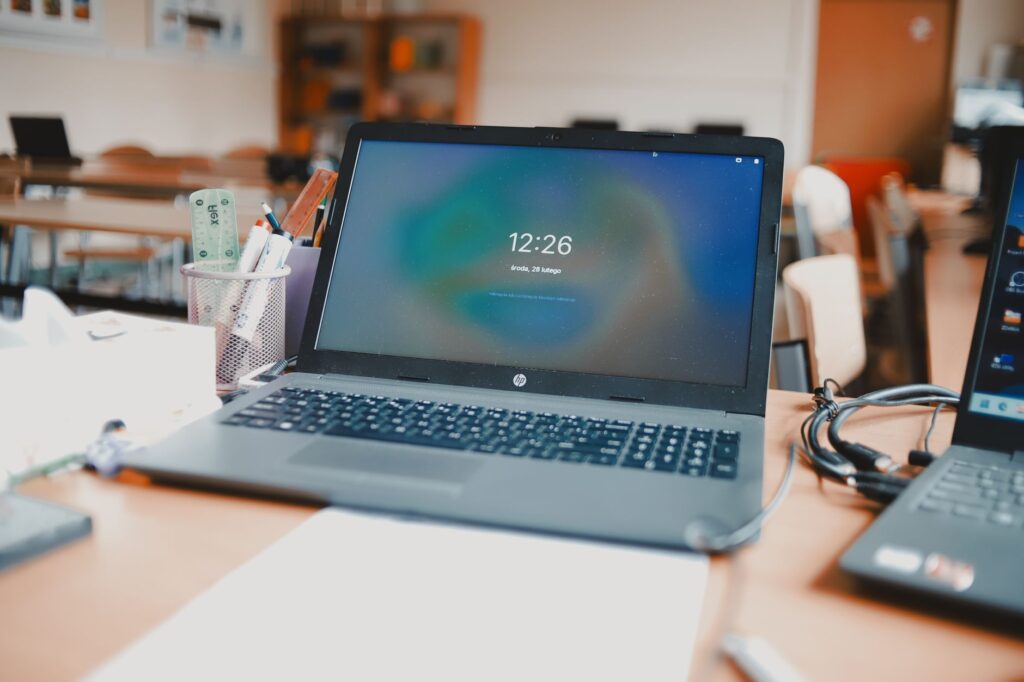
Save laptop battery power. This is one of the top concerns for users today, especially for those who frequently work on the go. Not knowing how to use it correctly not only reduces battery life but also leads to other problems. Laptop battery is dead. Energy consumption can quickly and directly impact work performance. Below are 7 smart tips to help you optimize energy and extend the lifespan of your computer’s \”heart.\”
1. Adjust the screen brightness appropriately.
The screen is the most power-consuming component on a laptop. Instead of setting the brightness to maximum, adjust it to a comfortable level for viewing (around 60-70%). You can use dedicated keyboard shortcuts or Windows settings to adjust it quickly. This is one of the key features. laptop tips Simple yet extremely effective, it significantly reduces the strain on the battery.
2. Close unnecessary background applications.
Many software programs often start automatically with the system and run in the background, consuming a significant amount of RAM and battery power. To check, press Ctrl + Shift + Esc to open Task Manager, then select the \”Startup\” tab and disable unnecessary applications. Cleaning up unnecessary processes not only helps… save laptop battery power It also helps the machine run more smoothly.
3. Use the built-in \”Battery Saver\” feature.
The Windows operating system offers a very useful \”Battery Saver\” feature. When activated, the system automatically limits background activities, reduces brightness, and adjusts CPU performance to extend battery life. You can set this feature to automatically turn on when the battery level drops below 20%. This is a computer tips Small but remarkably effective when you’re in a place without a power source.
4. Managing peripheral devices
Connections such as USB ports, wireless mice, and external hard drives all consume power from your computer’s battery. If you’re not using them, unplug them. Additionally, maintaining Bluetooth or Wi-Fi connections when not needed also drains the battery. Get into the habit of turning off these connections through the Action Center when you’re only working offline.
5. The secret to preventing laptop battery degradation: Charge correctly.
Many users still believe the misconception that batteries must be completely drained before charging, or that they must be fully charged to 100% before unplugging. In reality, modern Li-ion batteries do not require this.. PC battery storage The most effective way is to keep the battery level between 20% and 80%. Avoid letting the device shut down completely due to frequent battery depletion, as this will damage the internal battery cells, leading to problems. Laptop battery is dead. serious.
6. Update your drivers and operating system regularly.
Manufacturer updates often include power management optimizations. Leaving drivers or the operating system outdated can cause your computer to process tasks less efficiently, leading to unnecessary power consumption. Keeping your computer on the latest version is a way to optimize overall hardware performance.
7. Avoid letting your laptop overheat.
Temperature is the number one enemy of electronic components, especially batteries. When a laptop overheats, the battery has to work harder and its lifespan is more likely to be reduced. Make sure the laptop’s vents are always clear, and avoid placing the laptop on blankets, pillows, or soft surfaces while using it. If necessary, invest in a cooling pad to improve airflow. This is a crucial step to… PC battery storage Durable over time.
Conclusion
The application of computer tips The above not only gives you more flexibility in your work but is also a smart investment to protect your equipment. Whether you use your computer for office work or graphic design, being proactive in protecting it is key. save laptop battery power This will help you avoid unnecessary problems caused by malfunctions. Start changing your habits today to keep your laptop in top condition!