


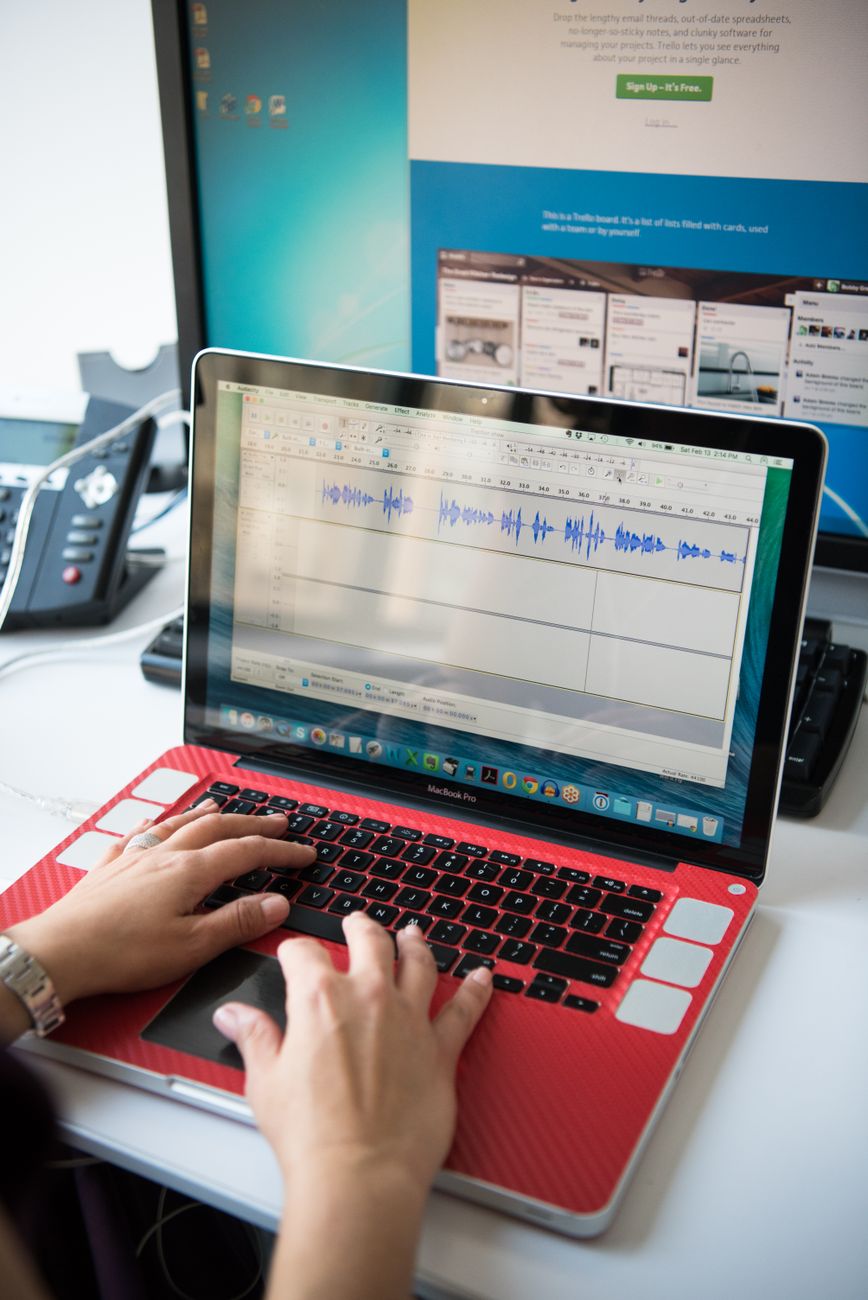
PC Screen Recording: 7 Best Screen Recording Software of 2024
PC screen recording Video recording is one of the most essential needs for computer users today, whether you’re a gamer wanting to share your winning moments, an office worker needing to create tutorial videos, or a teacher needing to record online lectures. With the development of technology, finding a high-quality video recording tool has become easier than ever. In this article, we will explore the top 7 most effective video recording software of 2024, along with some useful tips to optimize your computer usage experience.
—
1. OBS Studio – The professional choice for users
When mentioning screen recording software For the most powerful and free option, OBS Studio is undeniably the king among streamers and professional content creators. OBS offers unlimited recording time, supports multi-source recording (webcam, application window, images), and allows for highly detailed video quality customization. While its interface might be a bit complex for beginners, once you get used to it, you’ll find it an indispensable tool.
2. Xbox Game Bar – A built-in solution for Windows
If you are looking for a tool screen recorder windows Without needing to install any additional software, Xbox Game Bar is the answer. Built into Windows 10 and 11, you just need to press the `Windows + G` key combination to activate it. This is the quickest and most convenient solution for recording gameplay or quickly capturing an open application window.
3. Bandicam – Simple and high quality
Bandicam has long been known for its smooth screen recording capabilities, especially for 3D games. This software allows recording at resolutions up to 4K UHD and high frame rates, ensuring your videos are always sharp. A major advantage of Bandicam is its efficient file compression, preventing videos from taking up too much hard drive space.
4. Camtasia – An all-in-one video editing and recording tool.
If your goal is more than just screen recording and professional video editing, Camtasia is the number one choice. It’s paid software, but the money you spend is well worth it for the vast editing tools it offers. You can add annotations, transition effects, zoom, and insert audio directly after recording.
5. ShareX – Open source and unlimited
ShareX is an extremely lightweight and completely free tool. Although the interface may seem a bit outdated, its features are incredibly impressive. Besides screen recording, ShareX also supports advanced screenshot capture, automatic uploading to cloud services, and instant link sharing. This is a laptop tips This is extremely useful for people whose jobs require them to exchange images or videos quickly.
6. Loom – A quick and easy online video recording solution.
Loom has become a sensation in the office environment thanks to its convenience. Instead of sending lengthy emails, you can simply click to record your screen and face via webcam, then instantly receive a link to send to colleagues. Loom is extremely suitable for communicating information, providing project feedback, or giving quick instructions.
7. Apowersoft Online Screen Recorder
No installation required, no worries about taking up system space, Apowersoft is a browser-based video recording solution. Simply access the website, grant microphone and screen access, and you can start recording immediately. This is a lifesaver for those using computers with weak configurations or who are not allowed to install unfamiliar software.
—
Computer tips for high-quality screen recording videos.
To create professional-quality screen recordings, in addition to choosing the right software, you also need to master a few things. computer cat The following is important:
Clean up your desktop: A cluttered desktop screen will distract viewers. Hide unnecessary icons or use the \”Hide desktop icons\” feature before you start recording.
Set the standard resolution: Make sure your screen resolution is compatible with your desired video aspect ratio (usually 1920×1080).
Sound test: Always test your microphone before recording. If the surroundings are noisy, use noise-canceling software like Krisp or edit the recordings using Adobe Audition.
Use keyboard shortcuts: Memorize the keyboard shortcuts for your chosen software (e.g., `F12` to start/stop). This will prevent the recording toolbar from appearing in your final video.
Choosing screen recording software depends on your personal needs. If you’re a basic user, Xbox Game Bar or Loom are sufficient. If you’re a YouTuber or content creator, invest time in OBS Studio or Camtasia for the best results. Hopefully, this information will help you create impressive videos!
