


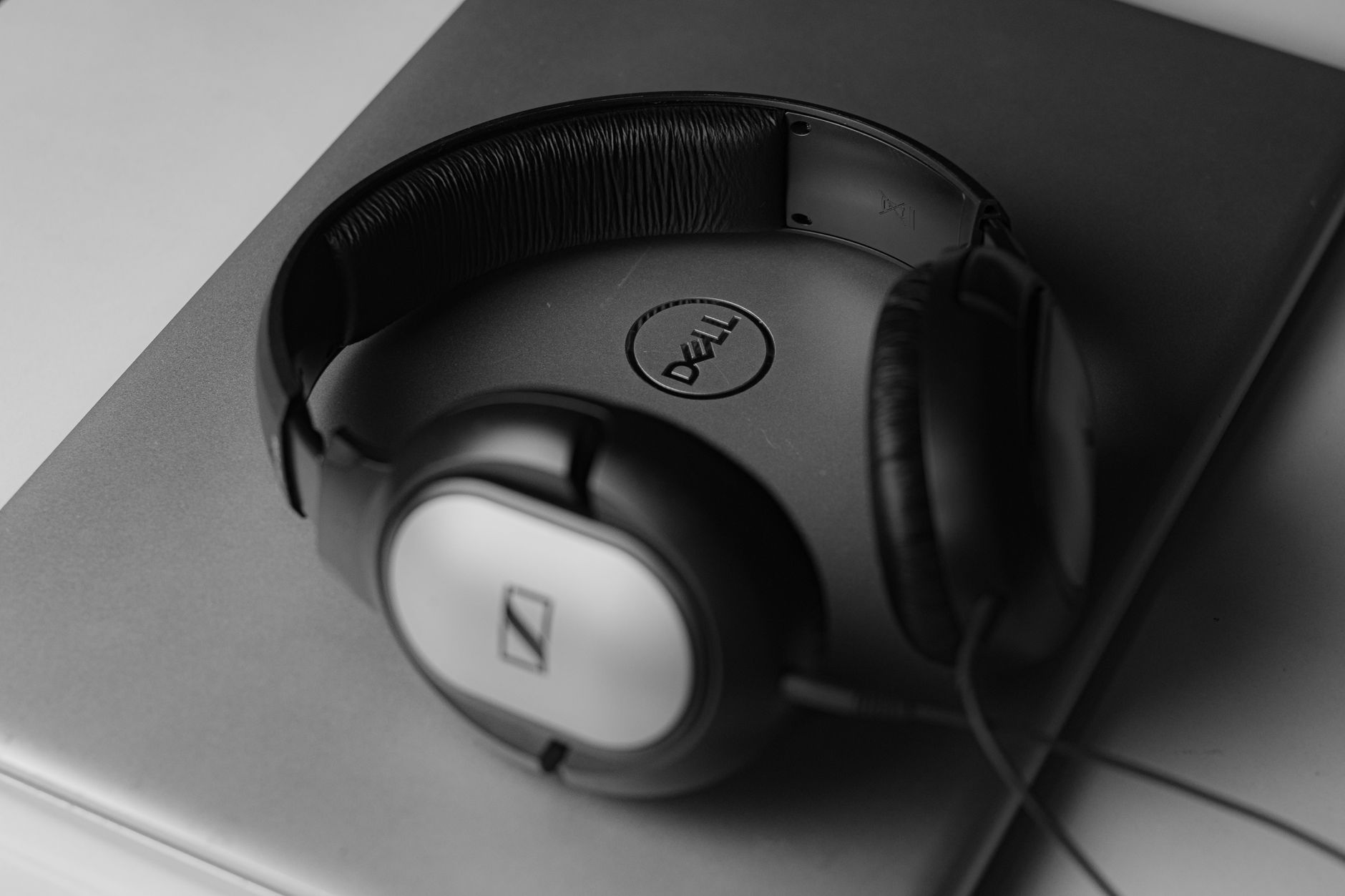
PC Audio Troubleshooting: 5 Effective Ways to Fix Your Computer Not Recognizing Headphones
Fix PC audio issues. One of the most common problems computer users face is when their device unexpectedly stops producing sound. A computer not recognizing headphones can stem from various causes, ranging from simple software errors to driver-related issues. If you’re frustrated because you’ve plugged in your headphones but can’t hear anything, don’t worry. Let’s explore five simple yet highly effective methods below to solve this problem at home.
1. Check the connection port and its physical condition.

Before we delve into the details… Windows tips and tricks Complex, the first and most important step is to check the hardware. In many cases, the computer doesn’t recognize the headphones simply because the port is dusty, loose, or the headphone jack is oxidized.
Try unplugging the headphones and plugging them back firmly into the 3.5mm port (for PCs, prioritize the port on the back of the case as it connects directly to the motherboard, offering greater stability than the front port). Also, check if the headphones work properly on your phone or another device to rule out the possibility of internal wire damage.
2. Check the audio settings (Playback Devices)
Sometimes, Windows doesn’t automatically switch the audio stream to headphones. To fix this, you need to check if the device has been set as the default device.
Right-click on the speaker icon in the bottom right corner of the screen.
Select Symptoms (or Open Sound Settings.
In the tab PlaybackFind the name of your headphones in the list.
If you see the headphones appear but they are in the \”off\” state. DisabledRight-click and select enable.
Finally, right-click on the device and select Set as Default Device.
3. Troubleshooting audio driver issues
Driver error This is the leading \”culprit\” causing audio interruptions. If the driver is old or outdated, Windows will be unable to recognize the peripheral device. To resolve this issue, follow these steps:
Press the `Windows + X` key combination and select Device Manager.
Find the item Sound, video and game controllers.
Right-click on the audio driver (usually named something like…) Realtek High Definition Audio) and select Update driver.
If the update doesn’t work, please select Unchecked deviceThen, restart your computer. The system will automatically search for and install the most suitable driver for your device. This is one of the steps… computer tips Extremely useful for definitively resolving software conflicts related to audio.
4. Use Windows’ automatic debugger (Troubleshooter).
Windows includes built-in diagnostic tools that allow users to fix common problems themselves without needing extensive technical knowledge..
Enter adjusting > System > Troubleshoot.
Select Other troubleshooters.
Go to the section Playing Audio and press Run.
The system will automatically scan, detect errors, and provide solutions for you. This is the quickest way to determine whether the error originates from the operating system or from a wrong setting.
5. Check the Windows Audio service in System Configuration.
If you’ve tried all of the above and it still doesn’t work, the Windows sound management service might be disabled..
Press Windows + R, type services.msc, and press Enter.
Search line Windows Audio in the list.
Right-click on it and select Restart. If the service is down, select Start.
Make sure that the setup Startup type currently in mode Trans.
Conclusion
Experiencing audio problems on your PC is unavoidable during use. Hopefully, with the 5 methods above, you can fix your PC audio issues yourself without having to spend money taking it to a repair shop. Always keep these tips handy to apply when needed, ensuring your work and entertainment experiences are not interrupted. If the problem persists after trying all the methods, it’s possible that the port on your motherboard is damaged and requires intervention from hardware experts. Good luck!
