


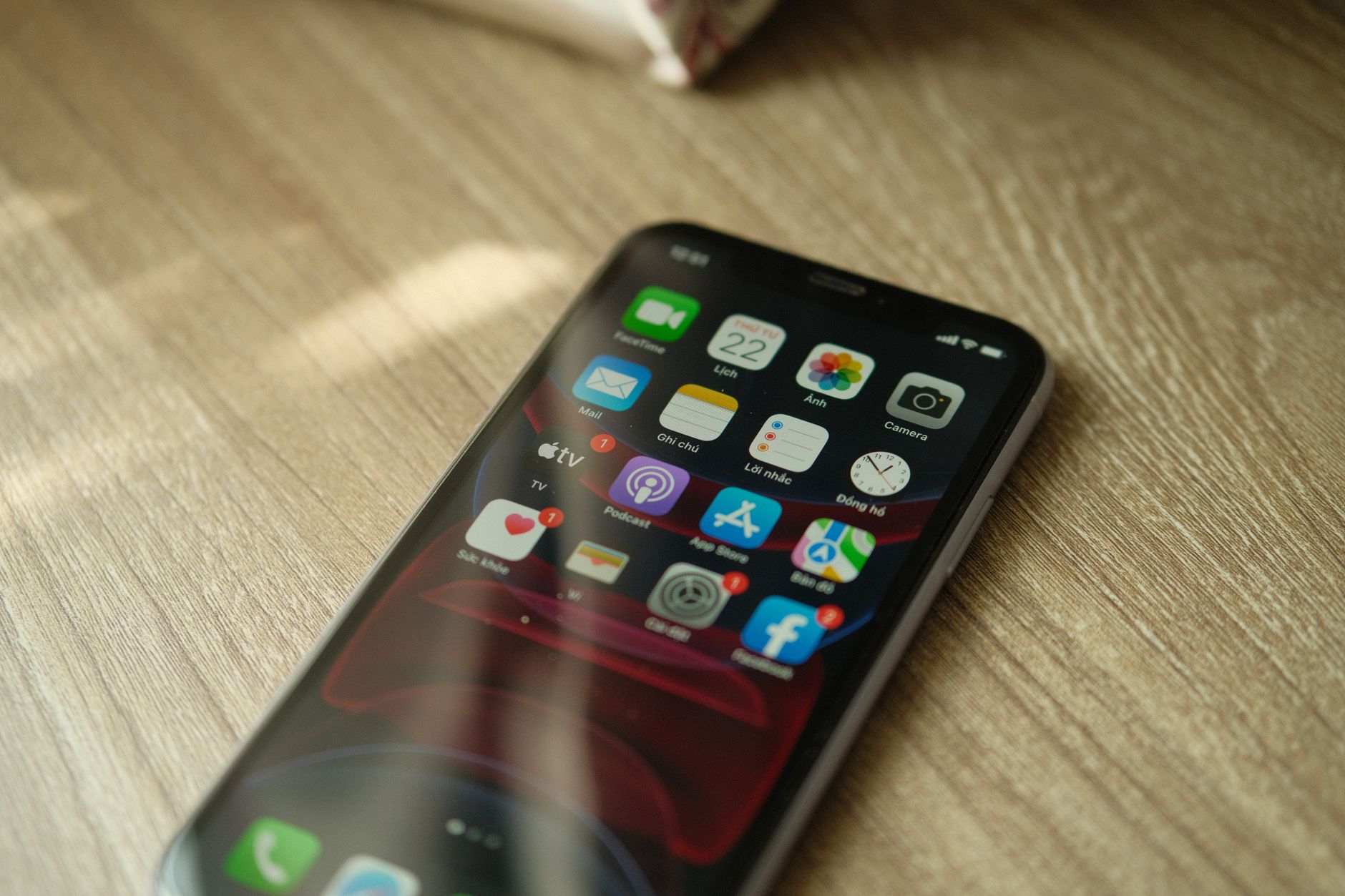
iPhone keyboard lag: 5 most effective solutions in 2024
iPhone keyboard lag issue This is one of the most frustrating experiences for Apple smartphone users. You’re composing an important message, sending an email, or writing a note, and suddenly the characters appear slower than your typing speed, or worse, the device freezes for a few seconds. This not only reduces productivity but also directly impacts your daily entertainment experience. Below are five simple yet highly effective methods to completely resolve this issue at home.
Causes of iPhone keyboard lag and how to fix it.

Before attempting any repairs, it’s important to understand that keyboard lag is often caused by conflicts between system software (iOS) and third-party typing applications, or by a full keyboard cache. Here’s a step-by-step troubleshooting guide:
1. Reset the keyboard dictionary.
One of the reasons your computer might be oversuggesting or overloading itself with data is the automatic dictionary. reset keyboard dictionary This will help your iPhone erase all learning data about the words you frequently use, making the keyboard \”lighter\”.
Making: Access Settings > General settings > Transfer or Reset iPhone > Reset > Select Reset Keyboard Dictionary. Enter your password to confirm. After resetting, the keyboard will return to its original state and usually function much more smoothly.
2. Check and optimize Vietnamese typing.
Many users are experiencing this problem. Typing in Vietnamese results in missing characters. Or the letters may be scrambled, especially when using the default Telex input method in iOS. This often happens due to synchronization errors or conflicts with the auto-correction feature.
To Fix Telex iOS errorsYou should try turning off auto-correction and word prediction:
Enter Setting news General settings news Keyboard.
Here, try flipping the switch off. Auto-Correction and Predictive. Sometimes, disabling these assistive features can significantly improve typing speed and accuracy.
3. Tips for using LabanKey on iPhone to replace the default keyboard
If you’ve tried the above methods and the default keyboard is still lagging, consider using third-party apps.. Tips for using LabanKey on iPhone It not only helps you type Vietnamese more smoothly thanks to the optimized Telex/VNI input method, but also provides many beautiful interfaces.
How to install: Download LabanKey from the App Store. Then go to Setting > General settings > Keyboard > Keyboard > Add a new keyboard. and choose LabanKey.
* Important note: For LabanKey to work smoothly, you need to grant \”Allow full access\” permission in your keyboard settings. If you still experience lag with LabanKey, try uninstalling and reinstalling the application to clear any old files.
4. Free up memory and update iOS.
Sometimes, the keyboard isn’t the main culprit but merely a victim of an overloaded system. If your iPhone’s storage is nearly full, the performance of the entire system – including the keyboard – will suffer. Delete unnecessary photos, videos, or unused apps. Additionally, always check for the latest iOS updates from Apple, as the company frequently releases minor patches related to keyboard issues and system stability.
5. Turn off \”Siri Suggestions\” and \”Search\” features.
If you experience keyboard lag when tapping the search bar or typing in note-taking apps, it could be because your iPhone is processing too many background tasks to provide suggested results. Try going to Setting > Siri & SearchThen, disable unnecessary features in the \”When searching\” section. This will reduce the load on the processor, thereby resolving the keyboard freezing issue.
Conclude
Hopefully, with the 5 methods above, you have successfully resolved your iPhone keyboard lag issue. If the problem persists after all steps, the fault may lie in the hardware or a more serious operating system conflict. In that case, backing up your data and performing a factory reset is the last resort you should consider. Be patient and enjoy the smooth typing experience on your beloved iPhone!
