



Enable caller ID reading on iOS: An extremely easy setup guide.
Read the caller’s name in iOS This is one of the incredibly useful features Apple offers to help users quickly access information without having to look at their phone screen. Instead of having to take your phone out of your pocket or bag to see who’s calling, your iPhone will \”speak up\” and announce the caller’s name or number. This feature not only provides convenience in busy situations but also enhances the hands-free experience for users.
In this article, we’ll explore how to activate this feature, as well as some tips to optimize reception. iPhone call notification.
How to activate call notifications on iPhone
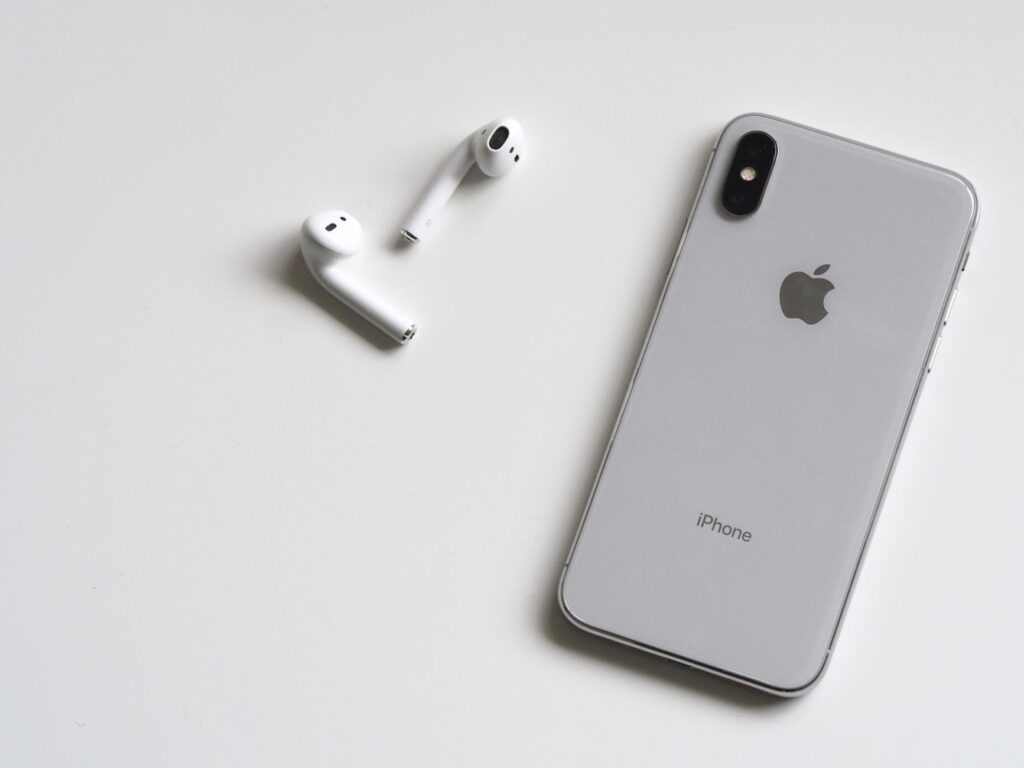
Setting up caller ID reading is a simple process that doesn’t require complex technical knowledge. Just follow these steps:
1. Open the Settings app. on your device.
2. Scroll down and find the item. Phone.
3. Here, please select the line Announce Calls.
4. In this menu, you will see options such as:
Always: Announce all incoming calls.
Headphones & Cars (Headphones & Car): Notifications are only given when you have headphones or your car’s entertainment system connected.
Headphones Only: Notifications will only appear when you are wearing headphones.
Never: Turn this feature off completely.
Choose the mode that best suits your daily needs for maximum convenience.
Why should you use this feature?
When you’re exercising, cooking, or driving, picking up your phone to see who’s calling can sometimes be a major inconvenience. With this feature, you can quickly decide whether you should stop what you’re doing to answer the phone. This is especially useful if you’re working with colleagues. Tips for using AirPodsThis experience will be more perfect than ever. The announcement voice will then be transmitted directly to your ear, making caller identification private and professional.
A few notes about \”call notifications in Vietnamese\”
One question that many Vietnamese users are interested in is whether iPhones support this feature. Call notification in Vietnamese Whether or not. In fact, although Siri is capable of reading caller names, its ability to pronounce Vietnamese still has certain limitations..
To ensure Siri can read your contacts’ names clearly and understandably, make sure that:
Names in the contact list are saved in Vietnamese, either with or without diacritics.
You have done it Siri voice settings at the optimal level. You can access it. Settings > Siri & Search > Siri Voice To choose the voiceovers that you find easiest to listen to and most accurate.
Optimize your hands-free experience with AirPods.
If you’re a frequent AirPods user, they’re the perfect match for call notification functionality. When combined with this feature, you can set Siri to not only read out the caller’s name but also allow you to use voice commands to answer or reject calls directly from your earbuds without touching your phone.
To check if your device is set up correctly, make sure your iOS software is updated to the latest version. Apple is constantly improving voice recognition and multilingual support in operating system updates, making notification features smarter and smarter.
Conclude
Job Read the caller’s name on iOS This is a great way to make your iPhone smarter and better serve you. Whether you’re a busy office worker, a frequent driver, or simply a tech enthusiast, this feature will certainly make your life significantly easier.
Don’t hesitate to experiment with different settings in the section. iPhone call notification To find the operating method that best suits your personal habits. We hope you have many enjoyable experiences with your iPhone!
