Computer troubleshooting Troubleshooting is one of the essential skills any tech user should possess. Nothing is more frustrating than having your device suddenly crash with a black screen or an \”operating system not found\” message while you’re working on something. However, don’t panic! Most software problems can be fixed at home if you understand the basic troubleshooting steps.
1. Identify the causes of the black screen error.
Black screen error This is a fairly common phenomenon on Windows, and can stem from various causes: from graphics card driver update errors and system software conflicts to corrupted operating system files. Sometimes, the problem is simply a hardware connection issue, such as a loose monitor cable or dust accumulating on internal components.
Before making any significant changes to the system, perform physical checks:
Check the cable connection between the monitor and the computer.
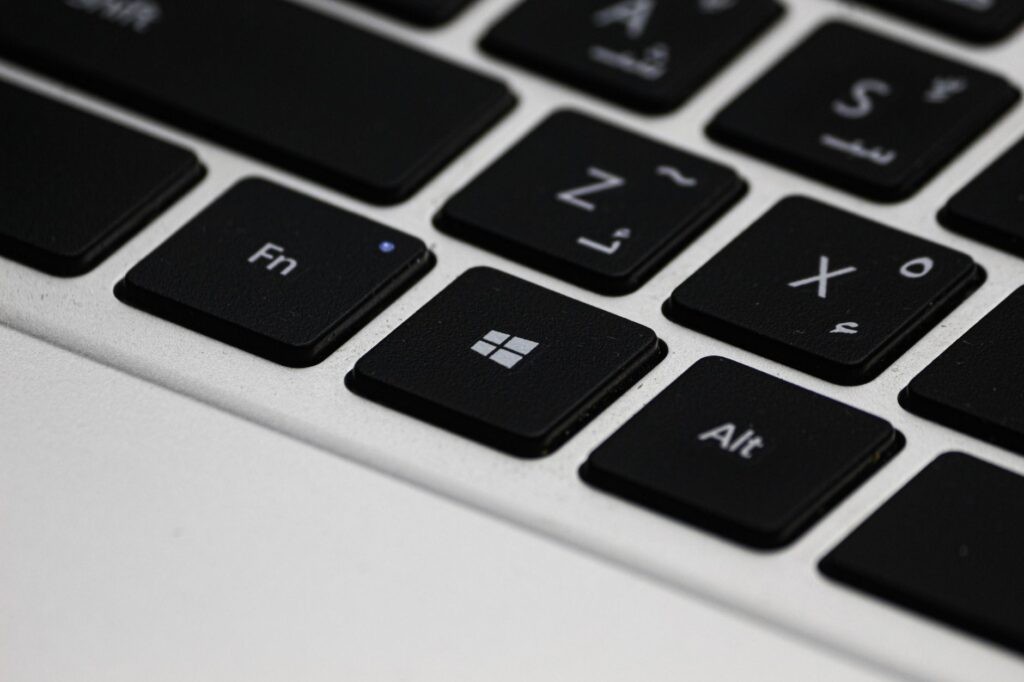
Try pressing the key combination Windows + Ctrl + Shift + B To restart the graphics card driver, the computer should emit a soft \”beep\” sound and the screen should light up again. If this resolves the issue quickly, the problem should be solved.
2. Effective steps to fix black screen and Windows boot errors
If basic checks don’t yield results, we need to delve deeper. PC troubleshooting via Safe Mode or Windows Recovery.
Step 1: Access Advanced Startup
If your computer cannot access the desktop, press the power button three times in quick succession while Windows is booting to force the system into boot mode. Transcendental Repair. From there, you will choose Troubleshoot > Advanced options.
Step 2: Use the Startup Repair feature.
In the menu Advanced options, select Startup Repair. The system will automatically scan and repair system file errors that prevent booting. Here’s how. PC troubleshooting Most effective for common boot errors.
Step 3: Use Command Prompt (SFC and DISM)
If Startup Repair isn’t effective, choose this option. Command Prompt and then enter the following two commands in sequence:
`sfc /scannow`: To scan and replace corrupted system files.
`chkdsk c: /f /r`: To check and repair errors on the hard drive (replace \”c\” with your Windows installation partition).
3. Advanced Windows Boot Error Troubleshooting Tips
Windows boot error This often happens after you change your hardware configuration or after a faulty Windows update. When your computer displays \”No boot device found\” or \”Operating System not found,\” follow these steps. laptop tips after:
Check BIOS/UEFI: Make sure that the hard drive containing Windows is set as the first boot device (Boot Priority).
Fix Master Boot Record (MBR) errors: In the Command Prompt environment, enter the following commands:
1. `bootrec /fixmbr`
2. `bootrec /fixboot`
3. `bootrec /rebuildbcd`
Reloading this boot sector usually helps the computer correctly recognize the system partition again.
4. Laptop tips to help your computer last longer.
Besides fixing errors, maintaining the system is key to avoiding recurring crashes or black screens. Here are some tips. laptop tips It helps you optimize performance:
Disable applications that start with Windows: Open Task Manager (Ctrl + Shift + Esc) to switch tabs. Bag And disable unnecessary applications to reduce the load on the system during boot.
Update your drivers regularly: Use official software from the manufacturer (such as HP Support Assistant, Dell SupportAssist) or Windows Update to ensure your graphics card drivers are always up-to-date.
Clean up junk files: Use Disk Cleanup or other optimization software to delete temporary files. An overfilled hard drive (especially the C partition) is a leading cause of slow Windows performance and errors.
Scan for viruses regularly: Sometimes malware interferes with boot files or causes black screen errors. Make sure you always have an effective antivirus program running.
Conclusion
Software problems are unavoidable during long-term computer use. Hopefully, with the information shared above, you now have a general overview and more confidence in handling basic technical issues yourself. Don’t forget to always back up important data to an external hard drive or cloud storage to ensure information security in the worst-case scenario. If you’ve tried everything and still can’t fix it, it could be a hardware problem (such as a damaged hard drive or faulty RAM), in which case you should take your computer to a reputable service center for expert assistance.